
CRM Guide for Consultants: Consultant Profile. Part 1
If this is your first time using the CRM with NPB and you're unsure where to begin, don't worry. This guide will walk you through each step to help you get acquainted. The CRM is designed to streamline your tasks and activities on the NPB platform, creating an optimal and straightforward workflow.
This guideline provides an overview of the consultant profile and helps you understand where to start and what features are available. For those who prefer a video format, a short tutorial is included at the end of the document.
The NPB team will cover operational questions separately. Consultants can find that resource here: CRM Guide for Consultants: Operations. Part 2.
Welcome page: key functions and overview
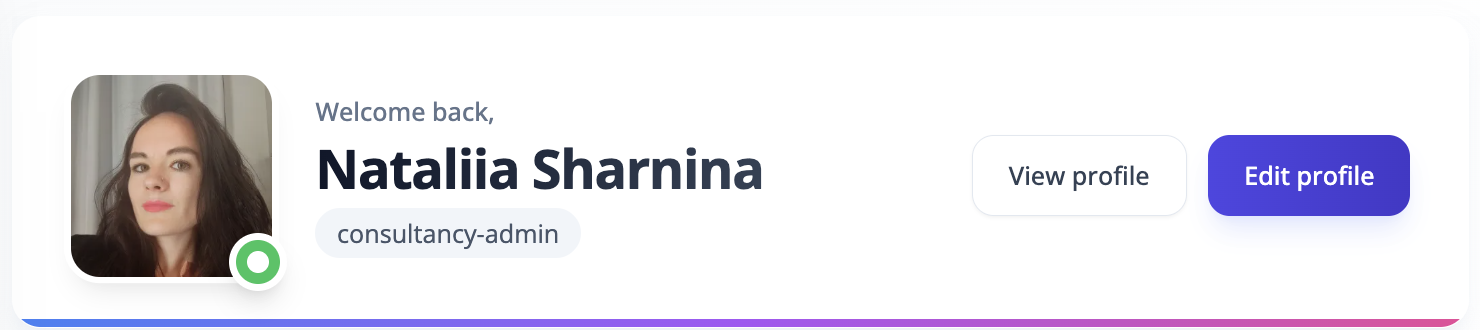
Your starting point. What you can do here:
View profile: Preview your profile to see how it appears to others.
Edit profile: Update your information at any time to reflect new skills, or contact details.
The platform assigns two user roles to manage different levels of access: Staff and Admin. The Admin role has full access, including the ability to manage team members and edit the organization's profile. The Staff role has restricted permissions, and cannot perform these specific administrative functions. The NPB team can upgrade a Staff role to Admin upon your request and internal agreement.
What do you want to do today?
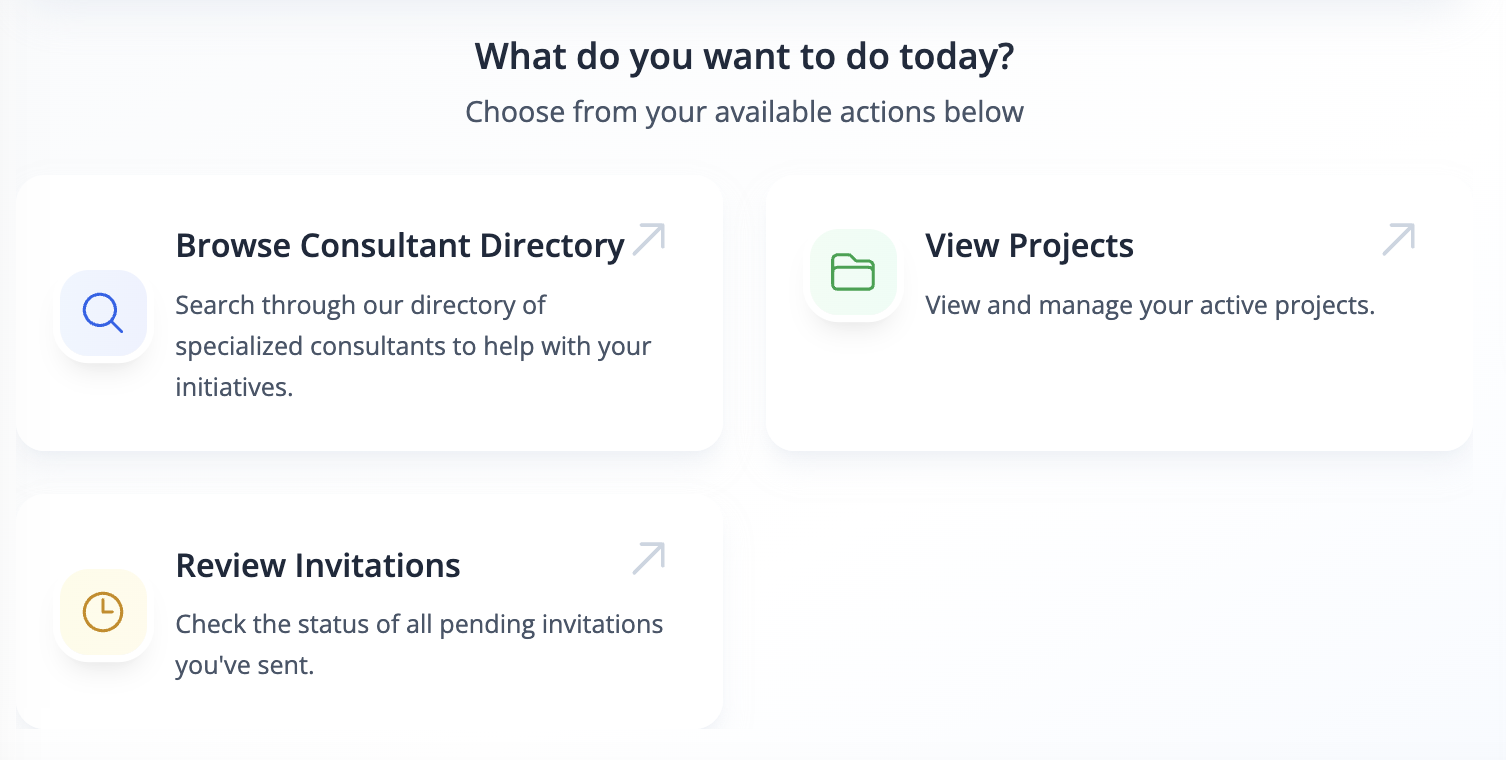
Browse consultant directory: This will take you to our database of around 800 experts. Use the filters on the left-hand side to narrow your search by expertise, language, domicile, or geographical experience.
Use the Search bar to find a consultant by name or keyword. Please note that the search bars on both the top navigation bar and the Consultants page function identically, so you can use either one.
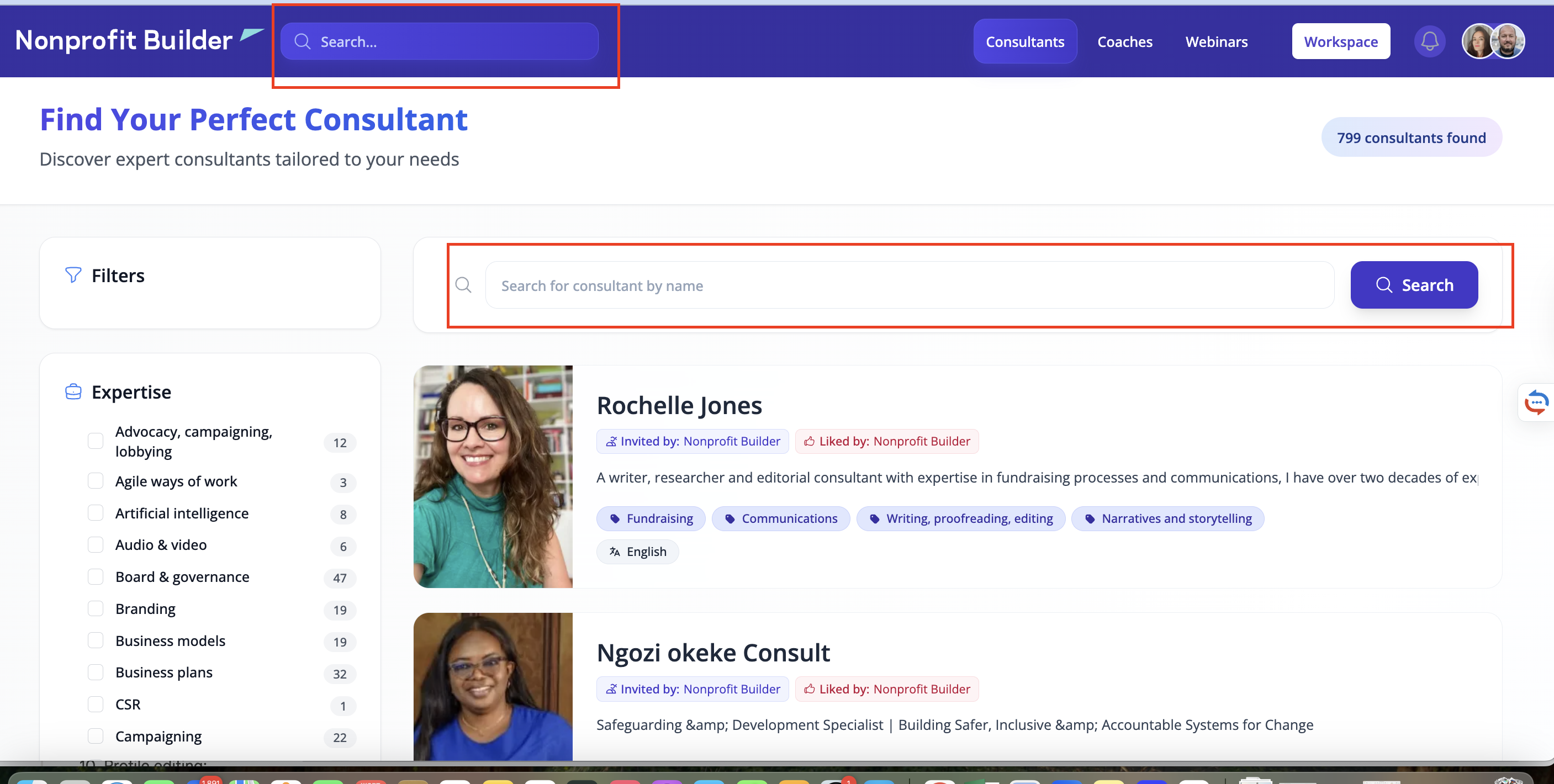
The Browse consultant directory tile on the Welcome page and the Consultants page on the top navigation menu lead to the same location, so you can use either to access the database of consultants.
Coaches tab on the top navigation bar leads to the list of coaches should the consultant need to search for one.
View projects: This section provides a list of consultant’s projects, including those that are completed, ongoing, or in the inquiry stage.
To take action on a project, click the "eye" icon or View button. This will allow you to review project details and perform necessary actions, such as:
- Accepting or declining a meeting request
- Preparing the statement of work
- Submitting a report
- Requesting payment, etc

For your convenience, projects can be filtered by (expand the dropdown of each):
Project status
Project type
Expertise
Contract
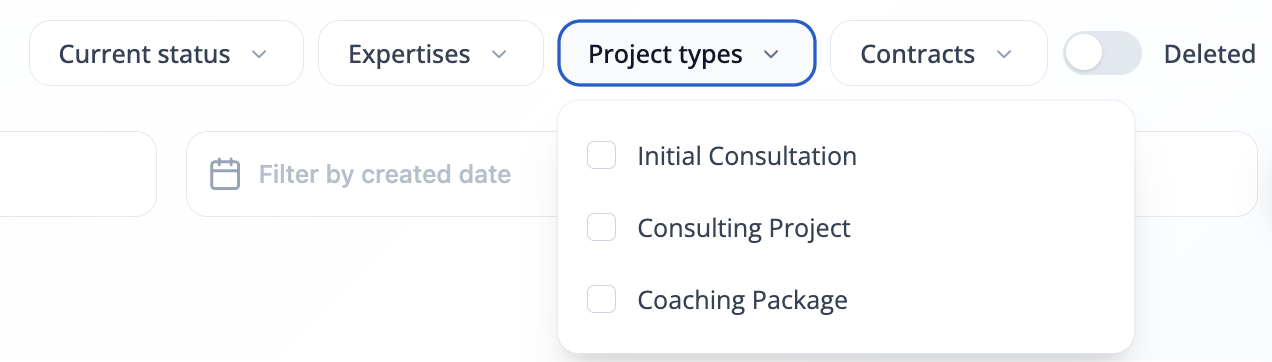
The View projects tile on the Welcome page and the Projects page on the left-side menu lead to the same location, so you can use either to access your project list.
Review invitations: The section shows a list of consultant’s team members who have been invited to the platform. Consultant can see the status of each invitation: delivered, opened, and accepted. The Review invitations tile on the Welcome page and the Invitations page on the left-side menu lead to the same list, so the consultant can use either one.
The consultant can invite a new team member through this page.
To invite a new team member, one should click the Invite button on the right side of the page. Then follow these steps:
Click Invite staff member.
Fill in the required information.
Click Send.
The person you invite will receive an email. If they accept the invitation, they will be registered as a staff member on the platform.

Similarly, the My Colleagues page on the left-side menu will lead the consultant to a list of their colleagues who have registered and joined the platform. From this page, the Invite button also allows a consultant to invite new colleagues.
If any invited user is no longer a part of the consultant’s team, the consultant should contact the NPB team and request that the user be removed.
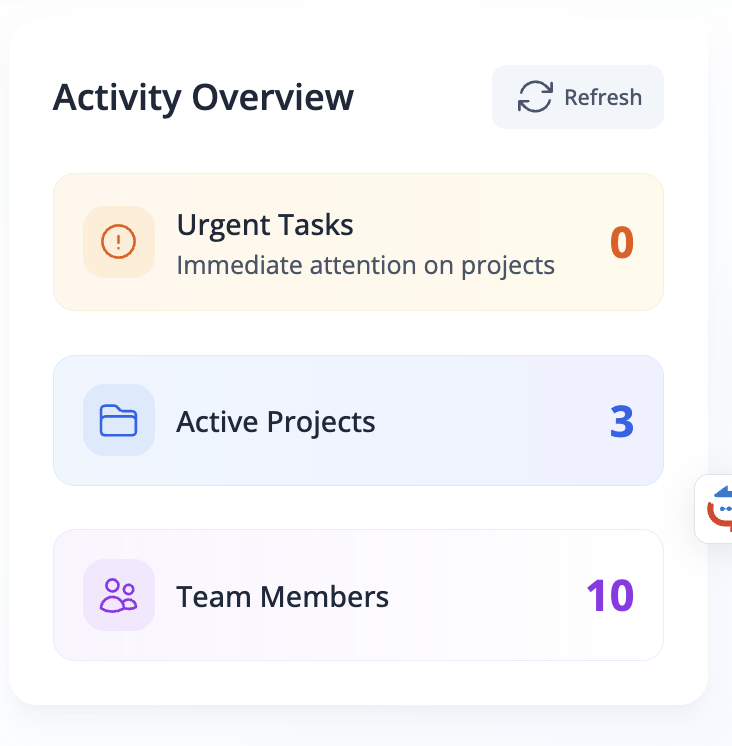
Activity Overview dashboard or some statistics
The Activity Overview dashboard provides a summary of the consultant's key metrics.
Pending tasks: This shows the number of urgent actions the consultant needs to take.
Active projects: This shows the number of projects currently in progress.
Team members: This shows how many team members have joined the consultancy.
To ensure the data is up-to-date, the consultant should use the Refresh button periodically.
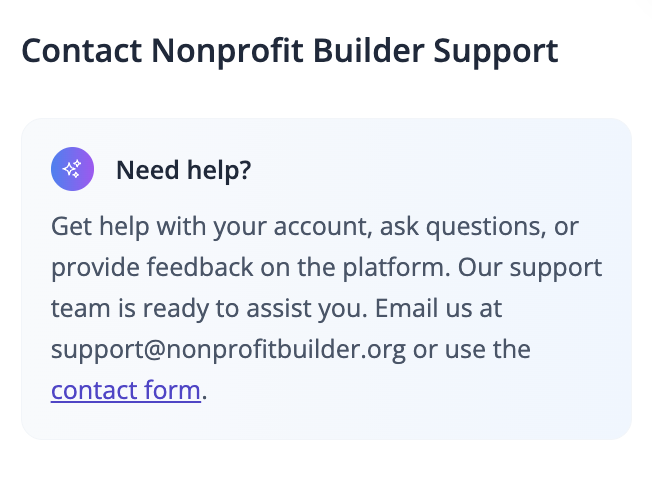
Contact Nonprofit Builder support
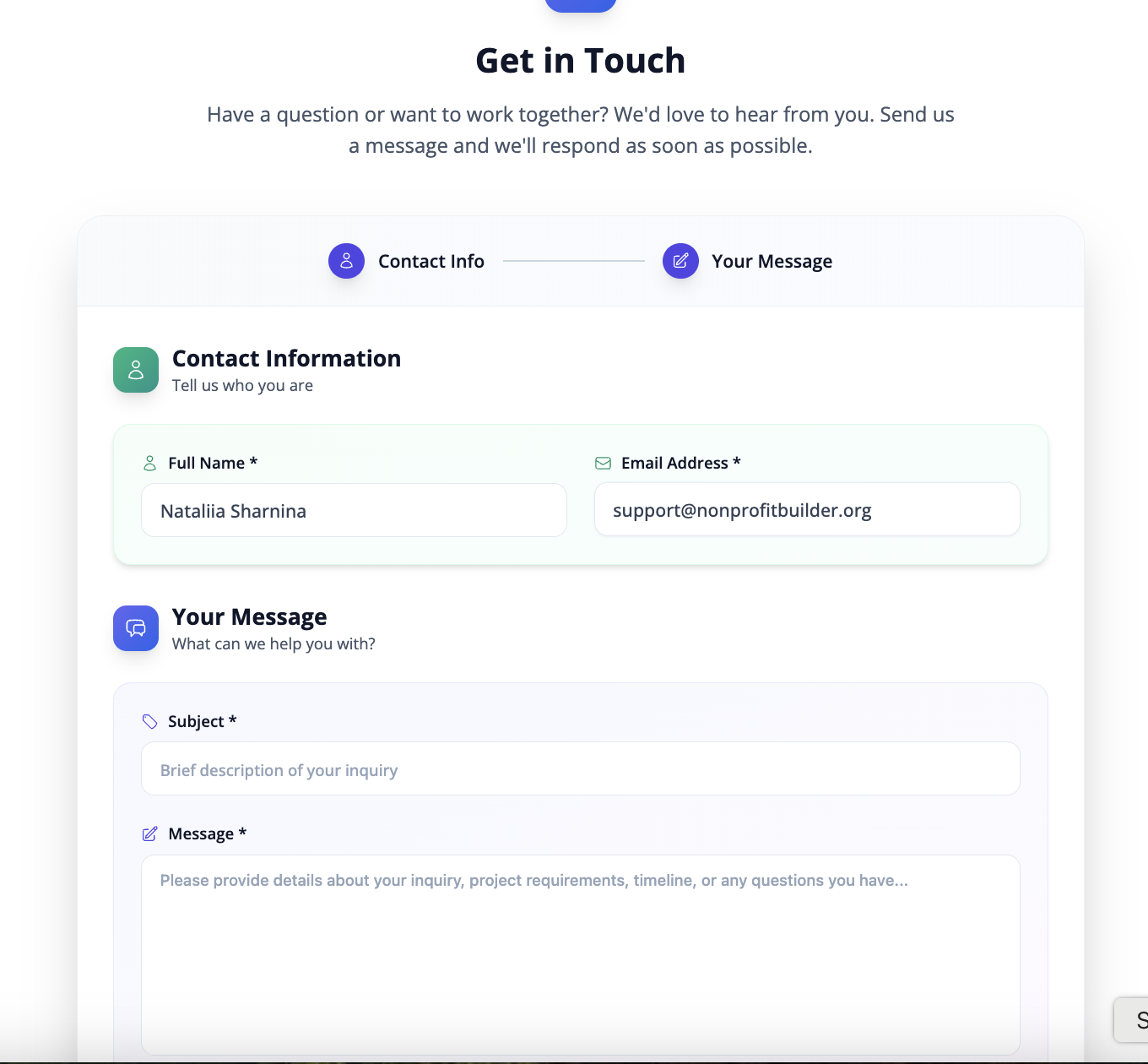
The Contact button provides access to our support team. Please use this feature to submit all inquiries, and we will ensure your message is routed to the appropriate team member for a timely response.
Top navigation bar

The Consultants and the Coaches pages have been covered earlier, please review the text above to remind yourself.
The Webinars page will invite the consultant to explore the upcoming Webinars and Events Nonprofit Builder holds for their community. Scroll down to see the past events and the recordings to review. The participation is free of charge for the NPB community. The webinars are related to many organizational development topics. Choose what you are interested in most and plan your schedule. We will be happy to see you there!
The Workspace button will lead back to the workspace where the consultant can manage their activities and operations.
Video format
CRM Guide for consultants. Part 1. Consultant profile.